Take note for Jenkins
I am a dedicated software engineer with a deep passion for security and a commitment to developing robust and scalable solutions. With over three years of hands-on experience in the .NET ecosystem, I have built, maintained, and optimized various software applications, demonstrating my ability to adapt to diverse project needs. In addition to my expertise in .NET, I have six months of specialized experience working with Spring Boot and ReactJS, further broadening my skill set to include full-stack development and modern web technologies. My professional journey includes deploying small to medium-sized systems to cloud platforms and on-premises environments, where I have ensured reliability, scalability, and efficient resource utilization. This combination of skills and experience reflects my versatility and commitment to staying at the forefront of the ever-evolving tech landscape.
Install Jenkins with Docker
docker run -d -v jenkins_home:/var/jenkins_home -p 8080:8080 -p 50000:50000 --restart=on-failure jenkins/jenkins:lts-jdk17
Some plugins for .NET
- Dotnet SDK (.NET Core and .NET 5.0)
- MSBuild (.NET Framework & .NET Core)
This plugins only work agent node Jenkins run on Windows
Config global tool
- Access the url
<ip:port>/manage/configureTools/ - In the section .NET SDK installations, we can add new SDK version here
Example Jenkinsfile with .NET 8
pipeline {
  agent any
  tools {
    dotnetsdk 'dotnet8'
  }

  stages {
    stage('Clean workspace') {
      steps {
        cleanWs()
      }
    }
    stage('Git Checkout') {
      steps {
        git branch: '<branch-name>', credentialsId: '<credential-id>', url: '<repo-url>'
      }
    }

    stage('Clean Project') {
      steps {
        echo "${env.BUILD_NUMBER}"
        script {
          sh 'export DOTNET_SYSTEM_GLOBALIZATION_INVARIANT=1 && dotnet clean'
        }
      }
    }

    stage('Build Project') {
      steps {
        script {
          sh 'export DOTNET_SYSTEM_GLOBALIZATION_INVARIANT=1 && dotnet build'
        }
      }
    }
  }
}
Add agent Linux node with Docker
1. Generating an SSH Key pair
ssh-keygen -f ~/.ssh/jenkins_agent_key
2. Create a Jenkins SSH credential
2.1 Go to your Jenkins dashboard
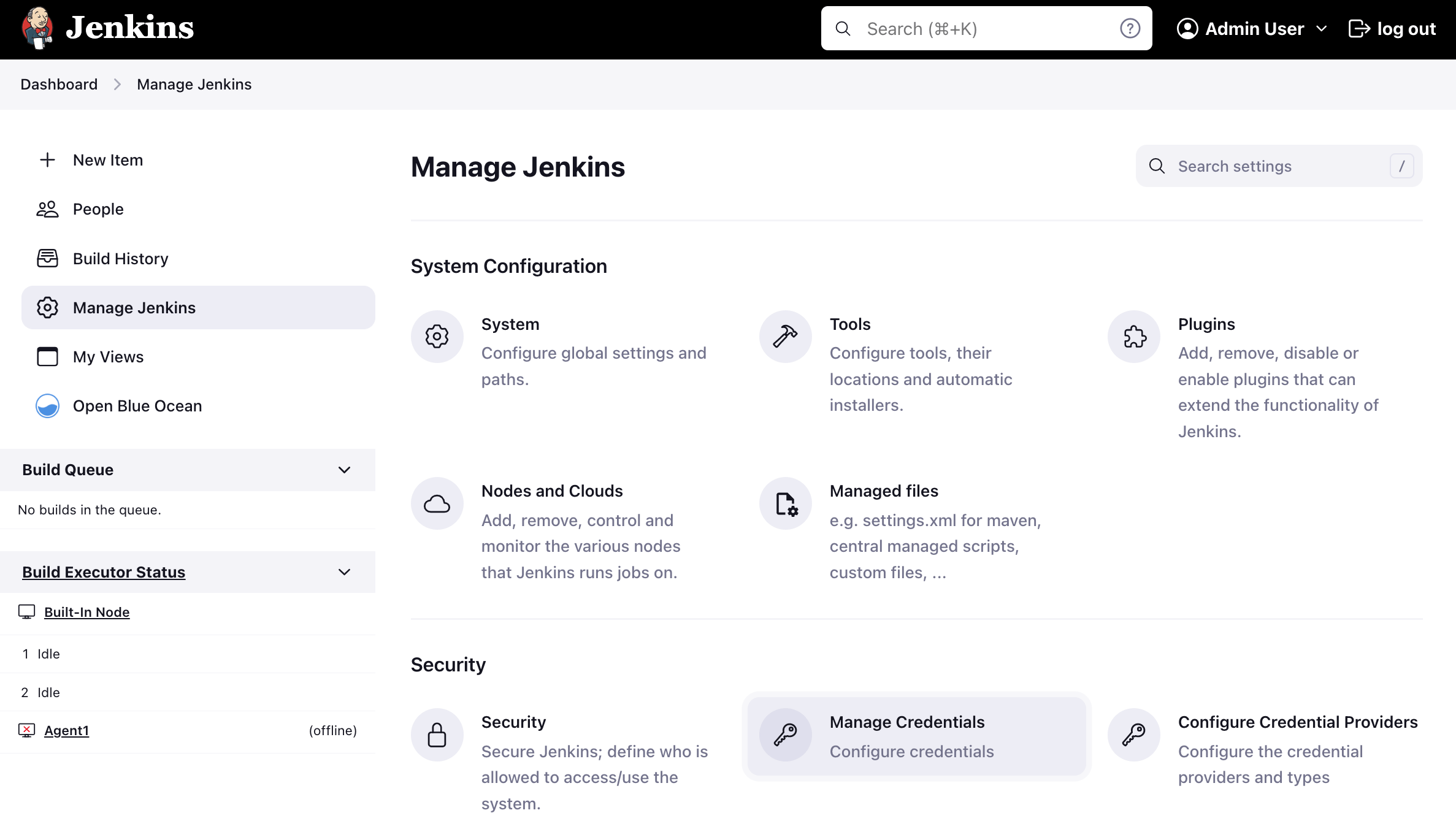
2.2 Manage Jenkins -> Credentials
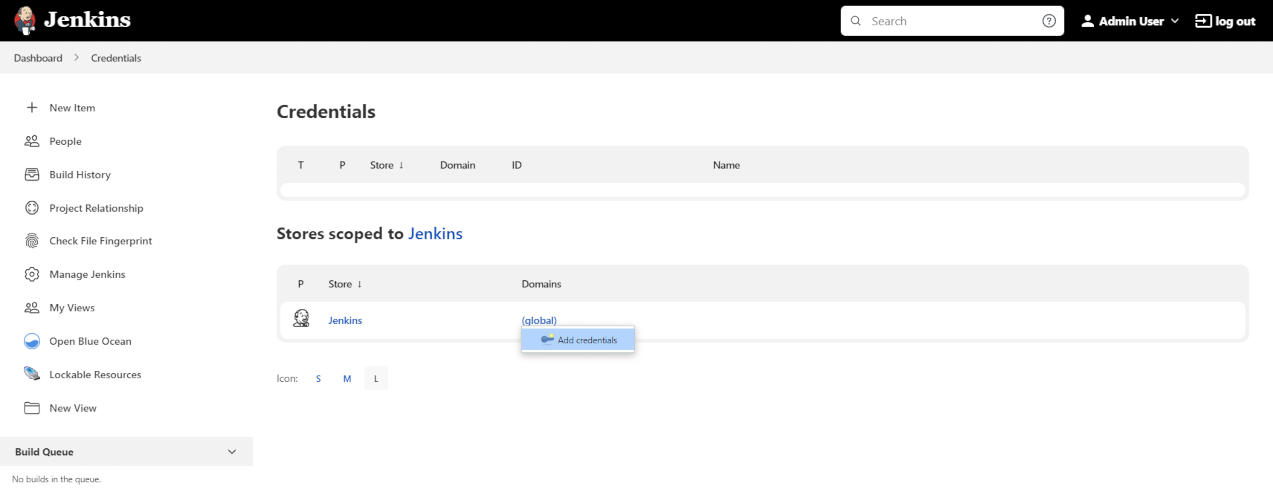
 2.3 Select the drop option Add Credentials from global item
 2.4 Fill in the form
- Kind: SSH Username with private key
- id: jenkins
- description: the jenkins ssh key
- username: jenkins
- private key: select Enter directly and press Add button to insert the content of your private key file at ~/.ssh/jenkins_agent_key and then press the Create button 2.5 Creating your Docker agent on Linux
- Run the command (On Windows)
docker run -d --rm --name=agent1 --network jenkins -p 22:22 `
-e "JENKINS_AGENT_SSH_PUBKEY=[your-public-key]" `
jenkins/ssh-agent:jdk17
Setup up the agent1 on Jenkins
- Go to your Jenkins dashboard
- Go to Manage Jenkins option in main menu
- Go to Manage Nodes and clouds item
- Go to New node option in side menu
- Fill the Node/agent name and select the type (e.g. Name: agent 1, Type: Permanent Agent)
- Fill in the fields:
- Remote root directory (e.g.: /home/jenkins)
- label (e.g.: agent1)
- usage (e.g.: only build jobs with label expression…)
- Launch method; (e.g.: Launch agents by SSH)
- Host; (e.g.: localhost or your IP address)
- Credentials; (e.g.: jenkins )
- Host Key verification Strategy; (e.g.: Manually trusted key verification … )
- Press the Save button